
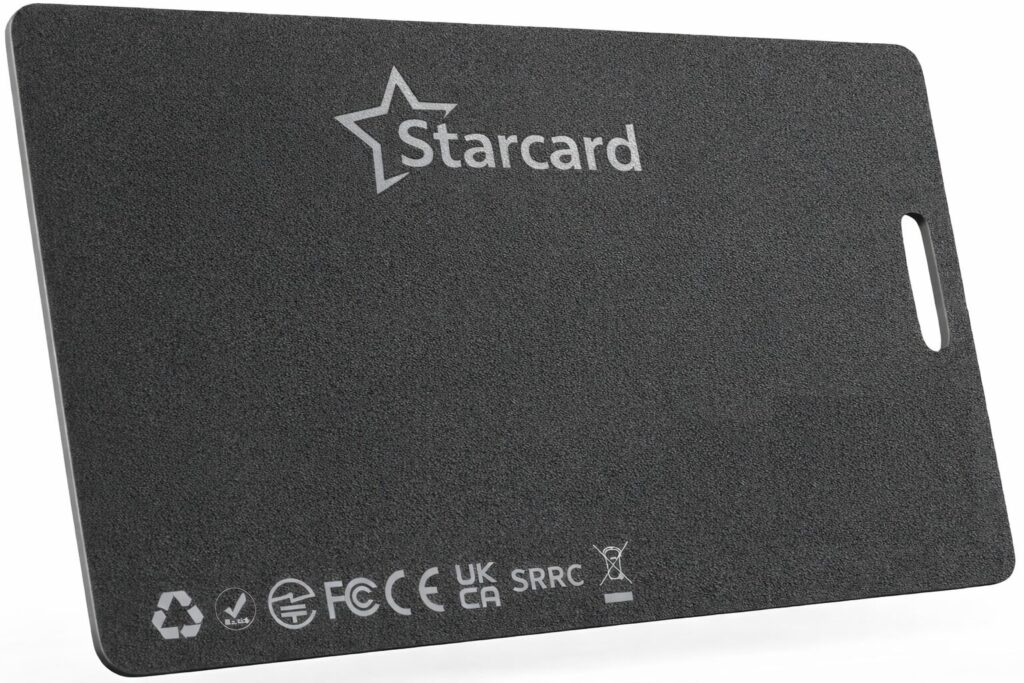
How to put the device into pairing mode:
Locate the button on the card. Press the button once. A confirmation melody will sound.
How to disable the device’s Finder function:
Locate the button on the card. Press and hold the button for five seconds. Three confirmation beeps will sound.
How to re-enable the Finder function:
Locate the button on the card. Press the button once. One confirmation beep will sound.
How to set the device in factory reset:
Locate the button on the card. Quickly press the button three times, then long press the button for the fourth time. A long confirmation beep will sound.
How to put the device into identify mode/Learn more*:
Locate the button on the card. Quickly press the button twice. Two confirmation beeps will sound.
How to stop the device from ringing:
If the device is ringing, locate the button on the card, and press the button once. The accessory will emit one beep as a confirmation and then stop ringing.
Important Notes:
When the StarCard is paired with an Android device, it operates as a Google Find Hub locator card. If paired with an iOS device, it functions as an Apple Find My locator card.
For pairing, ensure Bluetooth is enabled on your phone and that it has internet access. To activate the StarCard, press the button once, and you will hear a confirming activation.
You can remove the StarCard from either the Google Find Hub app on Android or the Find My app on iOS. If it’s within Bluetooth range, a factory reset will automatically occur upon removal from the app. If out of range, perform a manual factory reset.